How to Edit a WordPress Site Easily in 2025

Updated: Oct 3, 2025

Working with WordPress can be a rewarding experience, especially for those new to the platform and eager to create a website. Don't worry, with the correct procedures, editing a WordPress website is much simpler than it first appears.
We'll go over the tools you can use to edit your website in this guide, including the page builder plugins, the built-in block editor, and other customization options. Also, you will learn how to edit a WordPress website by making changes to the content, header, footer, and homepage. By the end, you'll feel comfortable making adjustments.
What are the Ways to Edit a WordPress Site?
There are a few different ways to tackle how to edit a WordPress site. Before we dive into the details, here’s a quick look at your options:
1. Site Editor

Best for: Block themes, designing your whole site, and people who like a visual, hands-on experience.
The full site editor is like a playground where you can tweak your site using blocks. Every part of your WordPress website, like the header and footer, is a block you can move and customize.
With the full site editor, you can:
Keep your site’s look consistent with global styles.
Change site-wide stuff like colors and fonts.
Create custom templates for different types of content, like a post or page.
See your changes live as you work.
Note: The full site editor only works with block themes. If you’re using a classic theme, you can’t use this tool.
2. Customizer

Best for: Classic themes, small tweaks, or people using older WordPress themes.
Using the Customizer is the conventional approach to learning how to edit a WordPress website with a traditional theme. It achieves the same objectives as the full site editor, despite being more structured.
With the Customizer, you can:
See your changes in real-time as you tweak.
Adjust things like colors, fonts, and the navigation menu.
Work within the options your theme gives you.
But the Customizer isn’t as flexible as the full site editor, and for advanced changes, you might need to know some CSS.
3. Page Builders

Best for: Both block themes and classic themes, great for beginners and pros alike.
Page builder plugins (like Elementor, Beaver Builder, or Divi) let you drag and drop to create custom designs. They give you more freedom than the full site editor or Customizer.
With page builder plugins, you can:
Use ready-made templates to save time.
Customize your site with fancy styling options.
Build designs that look great on phones, tablets, and computers.
Page builder plugins are awesome, but some have paid versions, and they might slow your site down if not optimized.
How to Edit a Theme in WordPress
This section will guide you through how to edit a WordPress site by changing how your theme looks, like tweaking colors, fonts, and layouts.
Using the Site Editor

The full site editor makes it easy to change your theme’s design with blocks, colors, fonts, and spacing, no coding needed.
First, go to Appearance → Editor in your WordPress dashboard.
And then in the left panel, click the Styles section to adjust global styles.
Last hit the Edit Styles button at the top to tweak:
Typography: Pick fonts, font sizes, and line spacing. You can also set custom styles for links and headings.

Colors: Choose colors for text, backgrounds, and accents, like a page button.

Layout: Adjust the width of content blocks and spacing between them.

These changes will apply to your whole WordPress website, giving it a unified vibe.
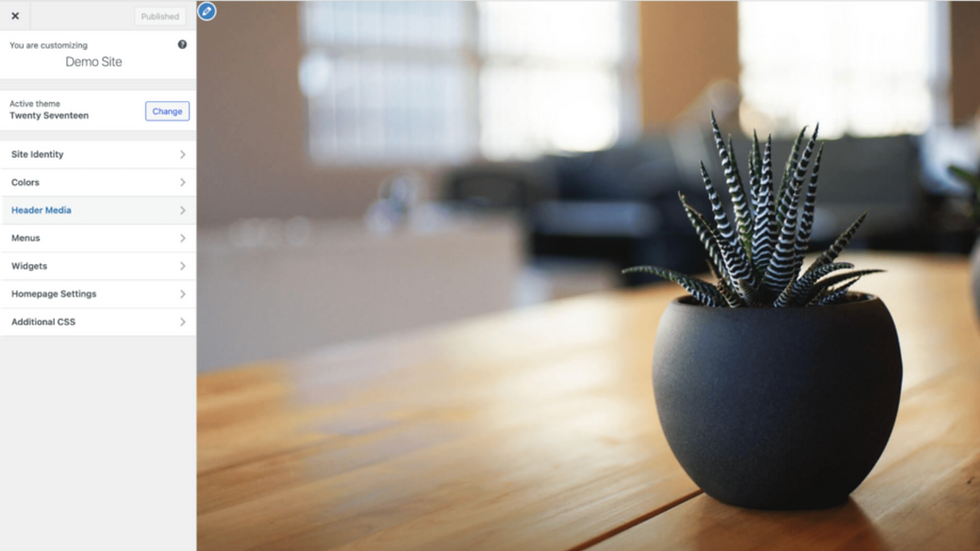
Using the Customizer

For classic themes, the Customizer is your go-to for visual changes.
Go to Appearance → Customize in your WordPress dashboard.
You’ll see a live preview of your site with a sidebar full of options.
Here’s what you can tweak in the Customizer:
Color Palette: Choose primary colors for the backgrounds, text, and buttons, such as the page button
Typography: Choose fonts and adjust spacing for better readability.
Button Customization: Style buttons with colors, borders, and hover effects.
Layout Controls: Change content width, sidebar placement, and spacing.
Using Page Builder Plugins

To use page builder plugins like Elementor or Beaver Builder:
Install and activate your page builder by clicking the Add button in Plugins → Add New.
Once it’s active, go to Elementor → Theme Builder to start designing.
You can now build pages with drag and drop elements, templates, and cool styling options.
Page builder plugins let you create custom layouts and work with both classic and block themes.
How to Update the Homepage in WordPress
Your homepage is the first thing people see, so it’s gotta look good and be easy to use. Learning how to edit a WordPress site starts with setting up your homepage. WordPress lets you choose any of page as your homepage. Here’s how:
Go to Settings → Reading in your WordPress dashboard.
Under Your homepage displays, choose either Your latest posts or A static page (for a custom homepage).
Click Save Changes to lock it in.

Editing the Homepage Using the Site Editor
To edit pages like your homepage with the full site editor:
Now, go to Appearance → Editor.
Then, you’ll see a preview of your homepage on the right and design options on the left.

After, click on the parts you want to change in an edited template. You can add sections like:
A big headline section (aka a hero section).
Featured products or services.
Client testimonials.
Call-to-action buttons, like a page button.

Don’t forget to save your changes!
Editing the Homepage Using the Customizer
For classic themes, here’s how to edit a WordPress site homepage:
Go to Appearance → Customize.
Open the Homepage Settings section and pick whether you want a specific page or your latest posts.
You can edit:
Header images or sliders.
Backgrounds and featured content.
Widget placements and layout in an edited template.
Editing the Homepage Using Page Builder
To use a page builder plugin like Elementor to edit pages like your homepage:
Create a new page and set it as your homepage in Settings → Reading.

Go to Pages → Add New, then click Edit with Elementor.

In Elementor, customize your page by using drag and drop to add things like text, images, and a page button.
How to Edit the Header and Footer in WordPress
Your header and footer show up on every page, so they need to look consistent and be easy to navigate, especially for your navigation menu.
Editing the Header and Footer Using the Site Editor
To tweak a template part like the header and footer with the full site editor:
Go to Appearance → Editor in your WordPress dashboard.
Under Patterns, you’ll see options for Header and Footer as a template part. You can edit existing pages or make your own.

Editing the Header and Footer Using the Customizer
For classic themes, use the Customizer to edit your website:
Go to Appearance → Customize.
You’ll see options for Header and Footer.
In the Header Builder, tweak the navigation menu, logo placement, and more.
In the Footer Builder, adjust the layout, widget areas, and styling.
Editing the Header and Footer Using Page Builder

To edit a template part like the header and footer with a page builder like Elementor:
Go to Elementor → Theme Builder.

Pick Header or Footer from the left sidebar.


Customize by using drag and drop or pre-built blocks to edit your website fast.
How to Edit the WordPress Navigation Menu
A clear navigation menu is very important for making your WordPress website easy to use. It also helps visitors find what they need and gives your site a polished, professional look. Know how to edit your navigation menu with below tool.
Using the Site Editor
The full site editor in WordPress lets you manage and customize your navigation menu with a cool block editor system called the Navigation block. Here is step how to edit a WordPress site with it:
Go to Appearance → Editor in your WordPress dashboard.
In the full site editor, click on Navigation to start editing your site.
You’ll be prompted to enable editing for the navigation menu. Just click Edit to dive in.
To add items, hit the clicking the add button and link to any post or page, category, or even a custom link.
To remove an item, hover over it, click the three dots next to it, and choose Remove .
You can tweak the design of the Navigation block, like adjusting the layout, fonts, colors, or spacing for global styles.
Want a dropdown menu (submenu)? Just drag child items a bit to the right under a parent item to create a nested structure.
The full site editor is awesome for block themes, giving you easy control over your navigation menu right in the editor.
Using the WordPress Customizer
The Customizer is a simple, visual way to handle how to edit a WordPress site for your navigation menu. It’s great if you like seeing your changes as you make them. Here’s how:
Go to Appearance → Menus in your WordPress dashboard.

Create a new page for your menu by giving it a name (like “Main Menu”) and clicking Create Menu.

Add items by picking from your existing pages, posts, or categories. You can also toss in custom links for external sites or specific pages.
Decide where your menu shows up. The Customizer gives you options like:
Primary Menu: Your main navigation menu, usually at the top near your logo, with key pages like Home, About, and Contact.
Social Menu: Menu that linking to your social media profiles, often shown as icons in the header and footer.

Preview your navigation menu to see how it looks, then click Save Changes to lock it in.
For a dropdown (submenu), drag a menu item slightly to the right under a parent item to make it a nested menu.
The Customizer is perfect for quick tweaks to edit your website without getting too technical.
Using a Page Builder Plugin (e.g., Elementor)

Page builder plugins like Elementor give you tons of flexibility to design and manage your navigation menu. They come with fancy styling options for a beautiful look. Here’s how:
Go to Elementor → Theme Builder in your WordPress dashboard.
In the Theme Builder, pick the Header template as a template part. The header is one of the first things visitors see, so it’s gotta shine.

Drag and drop the WordPress Menu widget into your header section. This will show the menu you made in Appearance → Menus.
Make sure your menu is selected from the Appearance → Menus section in the dashboard.
Elementor lets you give up the navigation menu with extras like a page button, images, icons, or even a login button for a personalized touch.
Once you’re happy, click Publish to make your edited template live.
By use of page builder plugins like Elementor is a great way to fully customize the look and layout of your navigation menu.
How to Modify the Site Title in WordPress
Your site title is a most important for branding and SEO. It shows up in search results, browser tabs, and your site’s header. Here’s how to edit a WordPress site title:
First, go to Settings → General in your WordPress dashboard.

Then, you will see three main fields:
Site Title: The main name of your WordPress website, shown at the top of pages and in browser tabs.
Tagline: A short description of your site, usually below the title.
Site Icon: The tiny icon (aka favicon) in the browser tab.
After, this enter your new site title, tagline, and site icon, then click Save Changes.
You can also tweak these in the Site Identity section of the Customizer, which lets you preview changes before saving.
How to Update a Page and Post in WordPress
WordPress are uses the block editor (also called Gutenberg) as its main tool to edit pages and posts. It works for any type of content, such as paragraphs, images, or buttons, as a separate block you can customize.
Know the difference between the block editor and the full site editor mention below:
The block editor is just for adding and managing content inside a post or page.
The full site editor (only for block themes) lets you change the whole site’s structure, like templates, header and footer, and global styles.
To get started:
Add a new page by going to Pages → Add New Page in your WordPress dashboard.
Then create a new post by going to Posts → Add New Post.


In the block editor, search for blocks by their names, like lists, featured images, or columns. Click to insert the block you want.
You can customize each block in different ways:
Image: Resize, move, add filters, or include captions and links.
Heading: Use H1 for the main title, H2 for sections, and H3 for subsections to keep things organized.
Button: Change colors, borders, and text for calls-to-action, like a page button.
Best Practices While Editing Posts and Pages
When you edit pages or posts in WordPress, a few simple tips can make your WordPress website easier to use and better for SEO. Here’s what to do:
Use Clear Headings: Use proper heading tags, H1 for the main title, H2 for big sections, and H3 for subsections. This helps readers and search engines get your content.
Add Image Alt Text: Always add alt text to images. It helps visually impaired users and search engines understand your images.
Keep Formatting Consistent: Use the same fonts, colors, and spacing across every post or page to make your brand clear and content easy to read.
Check on Multiple Devices: Use WordPress’s preview tool to make sure your content looks great on desktops, tablets, and phones.
Boost SEO: Use plugins like YoastSEO or Rank Math to optimize your content with easy tips for better search rankings.
Make Clear URLs: Use simple, descriptive URLs like example.com/gardening-tips instead of messy ones like example.com/p=123.
Organize with Categories and Tags: Use categories and tags to sort your posts, making it easier for visitors and search engines to navigate.
How to Edit the Code in WordPress
If you know a bit of coding, you can customize how to edit a WordPress site by tweaking core files. But be careful, messing up code can break your site. Here are the key files you might work with.
functions.php: Found in your theme’s folder, this file lets you add custom features, like support for menus or post thumbnails.
wp-config.php: In the root of your WordPress setup, this controls big settings like database connections and security keys.
Template Files:
header.php: Handles the layout and content of your site’s header, like the header and footer.
footer.php: Manages the footer layout and content.
single.php: Sets the layout for individual blog posts.
page.php: Defines the layout for static pages you edit pages on.
archive.php: Controls the layout for archive pages.
style.css: Holds the CSS that styles your theme’s fonts, colors, and layout.
Best Practices while Editing Code
Create a child theme before changing core files. This keeps your edits safe when the parent theme updates. Also, try changes in a test site first to make sure they work before going live.
If you know tools like Git, use them to track changes and undo mistakes easily.
Always back up your WordPress website before editing code. Save backups in multiple places for safety.
Wrapping Up
Editing in your WordPress site doesn’t have to be hard now. Whether you use the Customizer, the Site Editor, or a page builder, each tool have own unique benefits to help you design and manage your site with ease.
With this guide, you now have the knowledge to edit your WordPress theme, modify your homepage, and adjust your site’s header and footer, without worrying about losing your design’s original look. Go ahead and start customizing your WordPress site confidently!
Frequently Asked Question
What’s the easiest way to fix my WordPress navigation menu?
Go to Appearance and then Menus in your dashboard. Make a new menu, pick pages or posts to add, and choose where it shows up, like at the top of your site. If you’re using block themes, try the full site editor for a cool drag-and-drop way to edit your website.
How do I change my site’s title and tagline?
Head to Settings and General in your dashboard. Enter a new site title and tagline, then click Save Changes. You can also tweak them in the Customizer under Site Identity to see how they look before saving.
What’s the difference between editing a page or post and editing the whole site?
The block editor (Gutenberg) is for editing pages or posts, where you add stuff like text, pictures, or a page button inside a single post or page. The full site editor (only for block themes) lets you change big stuff like the header and footer or global styles across your whole WordPress website.
Can I use plugins to make editing simpler?
Yup! Page builder plugins like Elementor let you drag and drop to design menus, headers, or layouts. Go to Plugins and Add New, install one, and use its Theme Builder to make changes without coding.
How do I safely edit WordPress code?
First you have to create a child theme so your changes don’t get lose out during updates. Edit files like functions.php or style.css in Appearance then Theme File Editor. Always back up your WordPress website and test changes in a staging site to avoid breaking anything.
What are some tips for making great pages and posts?
Use clear headings (H1 for titles, H2 for sections), add alt text to images for better SEO, and keep fonts and colors the same across every post or page. Check how your content looks on phones and computers, and use plugins like Yoast SEO to boost your search rankings.
Comments